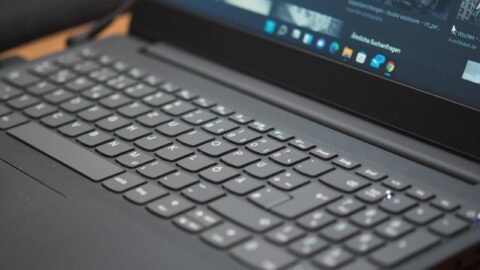
This PC is not an HP laptop. We followed Windows + Shift + S, Windows + Shift + R and the Snipping Tool settings on it. The PrtScn and Fn key steps weren’t tested here and follow Microsoft’s documentation, linked under Sources.
HP laptops use the same screenshot tools as every other Windows PC. The only HP-specific part is the keyboard: on many models the print screen key shares a key with another function, so it needs Fn.
Capture part of the screen: Windows + Shift + S
- Press Windows + Shift + S. The screen dims and a small bar appears at the top.
- Pick a shape on the bar: rectangle, freeform, a single window, or the full screen.
- Drag over the area you want, or click the window you want.
- The screenshot is copied. Paste it with Ctrl + V, or click the preview that pops up in the corner to edit and save it.
On Windows 11, Snipping Tool also saves each capture to Pictures > Screenshots automatically.
Save the whole screen in one press: Windows + PrtScn
- Press Windows + PrtScn. The screen dims for a moment.
- The screenshot is saved as a PNG file in Pictures > Screenshots.
What the PrtScn key does on its own
On Windows 10, pressing PrtScn copies the whole screen to the clipboard without saving a file. On many Windows 11 PCs, it opens the Snipping Tool bar instead, the same as Windows + Shift + S.
To change what it does on Windows 11, open Settings > Bluetooth & devices > Keyboard and switch Use the Print screen key to open screen capture on or off. On older versions of Windows 11 the same switch is under Settings > Accessibility > Keyboard.
Capture only the active window: Alt + PrtScn
Press Alt + PrtScn to copy just the window you are using. Paste it into an email, a chat or Paint with Ctrl + V.
If PrtScn does nothing: add Fn
On many HP laptops the key is labelled prt sc and shares space with another function. If pressing it does nothing, hold Fn and press it again, for example Fn + Windows + PrtScn to save the whole screen.
Record your screen instead
On Windows 11, press Windows + Shift + R to start a screen recording with Snipping Tool.
Where to find your screenshots
Look in Pictures > Screenshots. If OneDrive backs up your Pictures folder, they are in OneDrive > Pictures > Screenshots. Our guide Where do screenshots go on Windows? covers every case.